Showing posts with label photos. Show all posts

Thursday, March 8, 2012

My Story

My Story is a very reasonably priced ($1.99) app for creating books easily.  Books can be shared via email or saved as an iBook (a free app).  Once saved an an iBook - your story can be read on your iPad anywhere, anytime:-)

I love the fact that you can import your own photos, draw your own pictures, add text and record your voice.  It is very simple to use and has very clear symbols that children can follow with ease.

A great digital storytelling app for all ages:-)
Step 1 - Simply tap 'My Story' to give your story a title

Step 2 - Create your cover page you can tap the paintbrush symbol to open your options for painting or tap the photo symbol to see your options for taking a photo or adding a photo from your collection.  To change colours - simply tap the colour you would like to choose - scroll along to see new colours...

Step 3 - Add text to your cover page by clicking on the bottom right arrow - It will open up this screen, simply tap the 'ABC' to begin typing...  Once you have finished click the arrow again to go back to your cover page.  You can then click 'cover page' in the bottom left hand corner...

 
Step 4 - To add another page simply click the page symbol in the top right hand corner and continue to add pages to your story...

If you want to add your voice to your pages - simply click on the red microphone symbol...

Step 5 - When your story is finished you have the option of reading it or sharing it....

Step 6 - Click on share and choose how you would like to do so - HAVE FUN CREATING!


UPDATE: The publishers are working on a print function and in the meantime have some video instructions of how to print.

Wednesday, March 7, 2012

Pic collage

Pic collage is a free app that makes it easy to turn your photos into a collage which can be shared via email, Facebook or twitter.  Photos can either be taken using the iPad or iPhone Camera, or imported from the media library.  Once photos on the the screen, they can be edited, clipped, resized, moved around, set as the background or rotated.  A range of options include selecting from a range of backgrounds, adding text and stickers.  The photos can be moved in front or behind other photos with just a simple tap.  This is a great app that is easy to use for all ages.  Download and give it a try today.


- Posted using BlogPress from my iPad

Tuesday, November 22, 2011

Strip Design for Storytelling

I have been using Strip Design with the children at Whangarei Primary both on iPod touches and iPads.  This has proved a very successful tool for sharing digital photos.  The junior children have explored this app by taking their own photos around the school, adding them to strip design and writing small captions with some of the photos.  The senior children are flying as they add frames, text, colour and different effects to personalise their story.  Endless opportunties for creativity in their storytelling.  Here are a few step by step guides to using Strip Design...

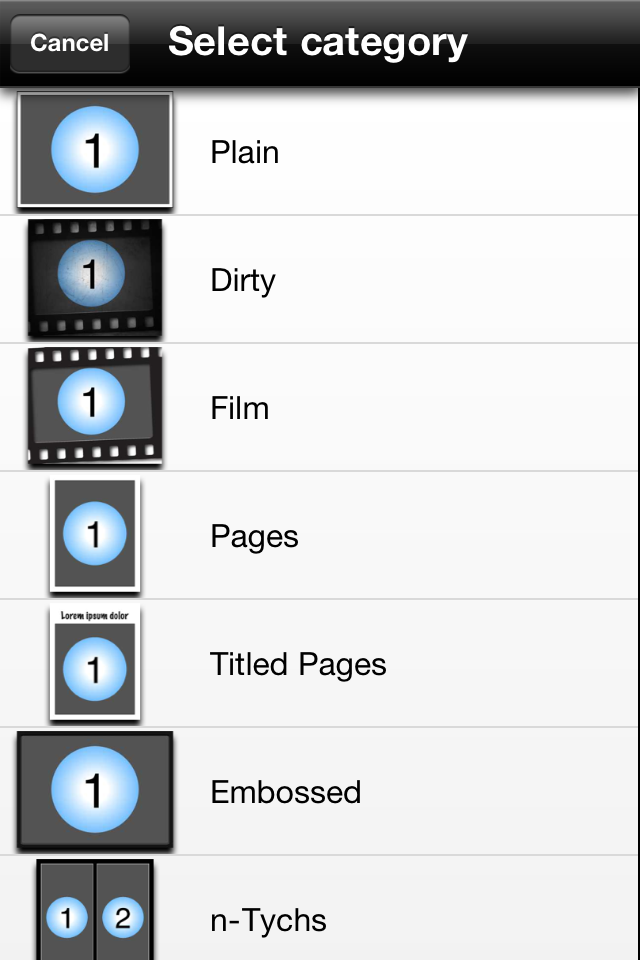
Step 1 - Choose your style

Step 2 - Choose your template and number of photos you wish to add

Step 3 - Click on add your photos
Step 4 - Choose photos from photo album, facebook etc or use the camera to take as you go 
Step 5 - Have a play with your photos - add frames etc

An example of adding, changing style and colour of frame

Step 6 - Once you have your frames sorted you are able to choose text etc for title and words

An example of adding title - simply double click on words to change them - easy as:-) 
Step 7 - When done click Share

From here to can email or save to Photo Album

You are also able to open as PDF and if you scroll down... share via facebook/flickr and twitter

My very basic finished product!  Thanks to my Oxfam Adventure Angels team for sharing photos:-)